
Verify your organization's domain in Postman
Domain verification is available with Postman Team and Enterprise plans. Domain capture is available only on Postman Enterprise plans with the Advanced Security Administration add-on. You need to reach out to Postman support to enable verification. For more information, see the pricing page.
As an Admin, you can add and verify your organization’s domain or subdomain in Postman. Domain verification is required before you can enable domain capture.
After you verify a domain, you can add users from that domain without requiring them to accept an invite.
Learn more about the benefits of enabling domain capture.
Add and verify a domain
Admins can add domains and subdomains to your team in your Domain Management dashboard.
-
In Postman, go to
 Settings > Organization settings > Domain Management.
 -
Click Add Domain.
-
Enter the domain or subdomain you’d like to add. If you’re adding a subdomain, you can choose to verify it through the root domain’s verification record or through a verification record that’s unique to the subdomain. Click Continue.
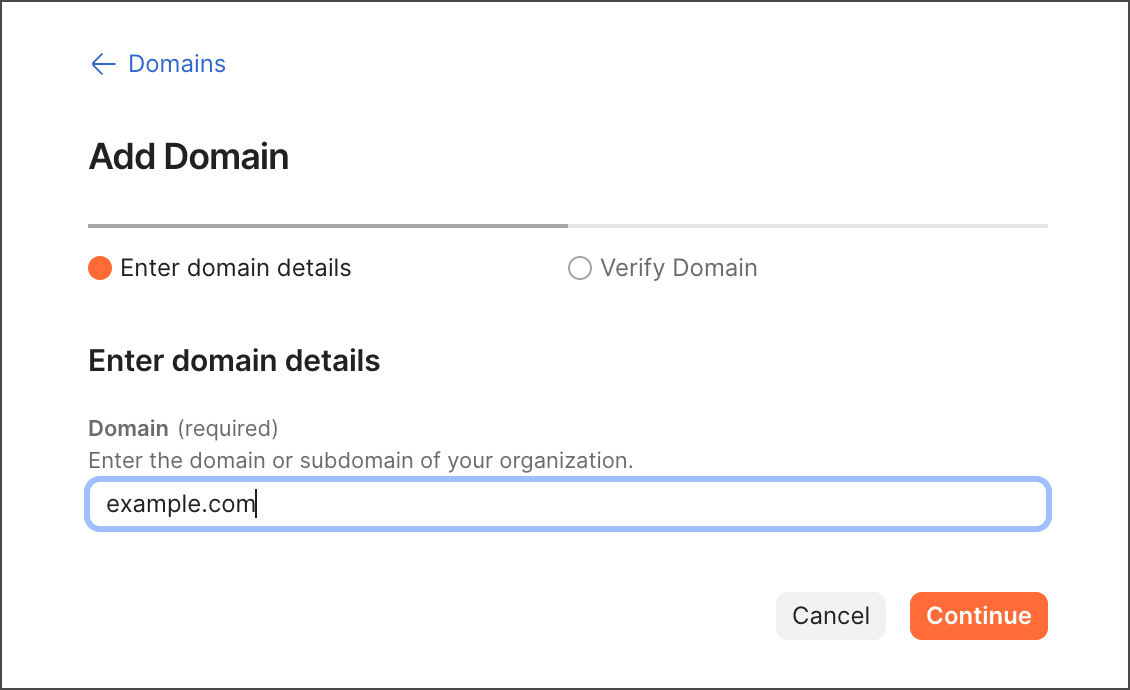
If you’re adding a subdomain and its root domain has already been verified by Postman, you’ll see a VERIFIED status next to the root domain. If you choose to verify through the root domain, you won’t need to add any other TXT records to your DNS configuration after you click Continue.
-
Click
 Copy to copy the TXT Record, then add it to your domain’s DNS configuration. If you’ve chosen to verify a subdomain directly without the use of the root domain, you must enter the subdomain in your DNS host before you add the TXT Record.
If you’re not ready to add the TXT Record to your domain’s DNS configuration, click Verify Later. For next steps, see Verify a domain later.
-
Select the I have added the TXT record to the DNS tool checkbox, and then click Verify Domain.
It may take up to 24 hours for the TXT changes to take effect to enable successful verification of the domain. Admins will receive an email notification when the domain is verified.
-
Once your domain is verified, you can request to enable domain capture.
After you verify a domain, you can also do the following:
- View a limited masked user list.
- Upload a CSV file of email addresses to unmask users in the list.
- Notify these users to join your team.
After a domain is verified, don’t delete the TXT record you added to your domain’s DNS configuration.
If you’re unable to verify your domain in Postman, please contact Postman support for help.
Verify a domain later
Optionally, you can verify a domain later if you didn’t verify the domain when you added it.
To verify a domain you’ve already added, do the following:
-
In Postman, go to
Settings > Organization settings > Domain Management. -
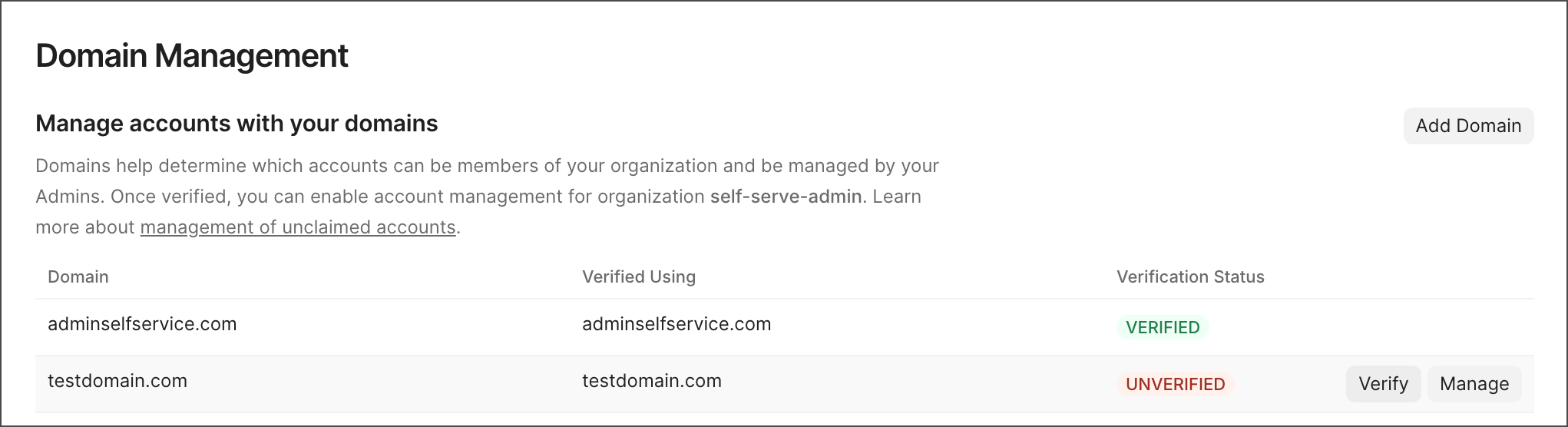
Click Verify next to the domain with the UNVERIFIED status you want to verify.
You can also click Manage next to the domain with the UNVERIFIED status you want to verify, then click View Verification Details.
-
Click
Copy to copy the TXT Record, and then add it to your domain’s DNS configuration. If you’ve chosen to verify a subdomain directly without the use of the root domain, you must enter the subdomain in your DNS host before you add the TXT Record. -
Select the I have added the TXT record to the DNS tool checkbox, and then click Verify Domain.
It may take up to 24 hours for the TXT changes to take effect to enable successful verification of the domain. Admins will receive an email notification when the domain is verified.
-
Once your domain is verified, you can request to enable domain capture.
View verification details
Admins can view verification details for verified and unverified domains in the Domain Management dashboard. Verification details include the verification TXT Record.
-
In Postman, go to
Settings > Organization settings > Domain Management. -
Click Manage next to the domain you want to view verification details for.
-
Click View Verification Details.
Enable domain capture
After you verify a domain and complete the prerequisites for enabling domain capture, you can enable domain capture.