
Generate dynamic mock server responses with variables
A mock server created from a collection returns static responses defined in saved examples. To return responses that use random data, or that vary based on the request, you can generate dynamic responses. With dynamic mock responses, you can simulate various scenarios without having to create a saved example for each one.
This page applies only to mock servers created from a collection. If you’re building a mock with custom JavaScript instead, use pm.state or pm.datasets in your handler code to return dynamic data. To learn more, see Use pm methods in the mock editor.
Use Postman variables with mock servers
You can store values in variables and use them in your collection’s requests and responses. If you change the value of a variable, the new value is used wherever the variable occurs. Postman mock servers support environment variables and collection variables.
- To use environment variables, select the environment in the mock server’s configuration.
- To use collection variables, define them in the Variables tab in your mocked collection.
Mock servers don’t support global variables or vault secrets.
When you use an environment or collection variable in an example, the mock server resolves the variable and replaces it with the variable’s shared value. If an environment variable and a collection variable have the same name, Postman uses the environment variable. Learn more about variable scopes.
Dynamic variables
You can use dynamic variables in your example’s response body to return randomized data. Dynamic variables are resolved as part of the mock server response and replaced with random data from the Faker library. They’re useful for generating random data when mocking an API. Use them for exploratory testing and writing rich, data-driven tests.
For example, your collection’s example response body might contain the following dynamic variables:
When you call the mock server endpoint, the response data returns a response similar to the following:
Use contextual mock responses in templates
A template is a set format that’s used to create responses that change based on the request sent to the mock server. Template helpers give you access to data from the incoming request, such as the body, query parameters, path segments, and headers. You can include this data in the response sent by the mock server.
To generate contextual responses on a mock server with response matching for the request body enabled, set the x-mock-match-request-body header to false. Otherwise you’ll get a mockRequestNotFoundError error.
To create contextual responses, add one or more helpers to the response body or response headers of an example in the mocked collection, such as:
$body- Access the body of the incoming request. The request must have aContent-Typeheader that’s JSON (such asapplication/json),application/x-www-form-urlencoded, ormultipart/form-data. Otherwise, the mock server returns the helper as text instead of the body data.$queryParams- Access the query parameters of the incoming request.$pathSegments- Access the path segments of the incoming request (such as/product/id/details).$headers- Access the headers of the incoming request.
Use object-path syntax to access specific helper values or define a helper’s default value. The following are some of the ways you can use helpers in your examples:
{{$body}}- Return the full request body. Use{{$headers}},{{$queryParams}}, or{{$pathSegments}}without a key to return all headers, query parameters, or path segments in JSON format.{{$body 'path.to.property'}}- Return the value of a specific property from the request body.{{$headers 'header-key'}}- Return the value of a specific request header. Header keys aren’t case-sensitive. If the header has comma-separated values, the mock server returns them as a JSON array.{{$queryParams 'parameter-key'}}- Return the value of a specific query parameter.{{$pathSegments '1'}}- Return the second segment of the request path (for example, if the request path is/product/12345/details, return12345).{{$body 'property' 'default value'}}- Define a default value for a property.{{$body 'a\.a'}}- Return the value of the propertya.awhich has a dot (.) in the key name. Escaping dots is only supported for$body.
Contextual response example
This example shows how to use a template helper to access data from the body of the incoming request and return that data in the response from the mock server.
-
In the mocked collection, create a new request, then select the raw option in the Body tab. Select JSON from the dropdown list, then enter the following:
-
Add an example to the request and enter the following response body data to the example:
In this example, the
{{$body}}template helper accesses theusernamevalue.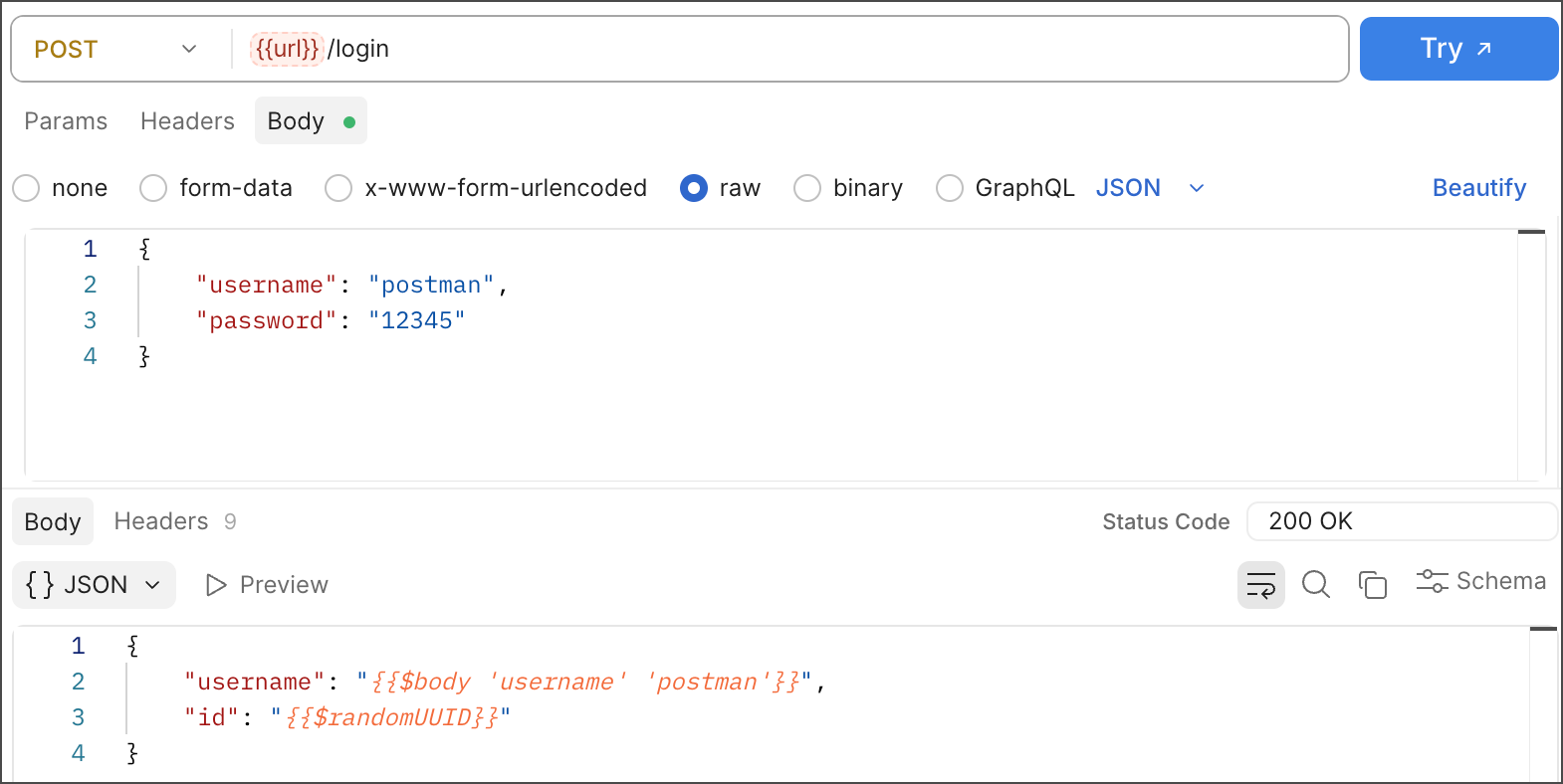
-
Send the request to the mock server using different values for
usernamein the request body. For example, if you send the following request body:The mock server returns a response with the request body’s
usernamevalue:
Use path variables in responses
If a path segment in your example’s URL is a variable in double curly braces (for example, /users/{{userId}}), the mock server matches any value in that position. You can reference the incoming request’s value for that segment in the response body by name, for example {{userId}}. This is an alternative to using the $pathSegments helper, and can be easier to read when a URL contains multiple variables.
Don’t use a named path variable with a colon (for example, /users/:userId) for this. The mock server doesn’t replace {{userId}} in the response body with the value from a :userId path segment. Also make sure the variable isn’t defined in the mock server’s environment or the collection, or the mock server uses the variable’s value instead.
For example, if your example’s URL is https://example.com/users/{{userId}} and the response body is the following:
Then a request to /users/42 returns the following: