
Postman quick start
Postman’s API client enables you to create and send API requests, including HTTP, GraphQL, and gRPC requests. You can send a request to an endpoint, retrieve data from a data source, and test an API’s functionality.
In this quick start guide, you will send your first API request using the Postman Echo API and see the response returned directly in Postman. You’ll also learn how to save your request to a collection and write a basic test to validate the API response.
Send an API request
Make sure you’ve downloaded and installed the Postman desktop app. When you’re ready, open the Postman desktop app and send your first API request.
- Click
 Add in the workbench to open a new tab.
 - Enter
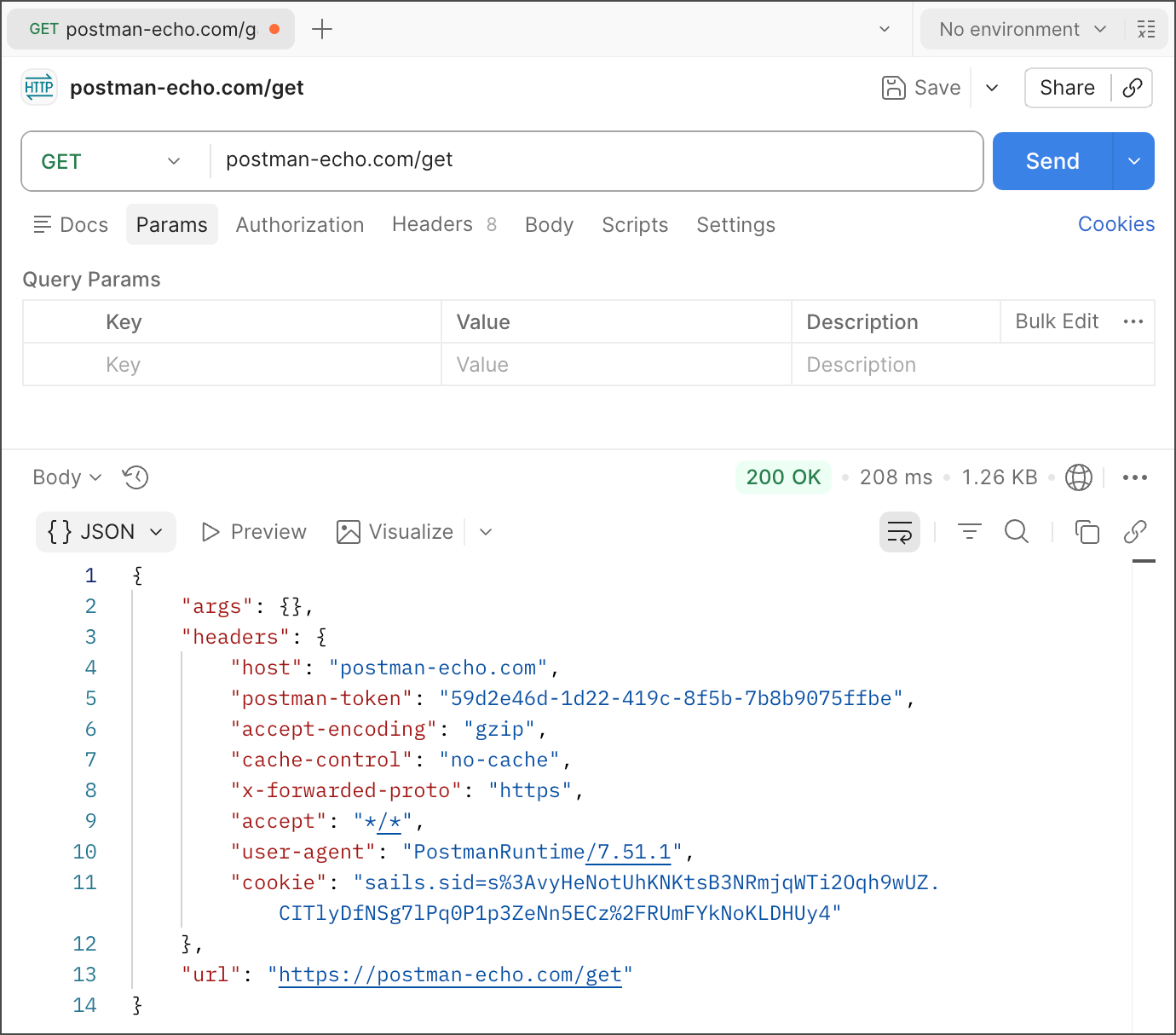
postman-echo.com/getfor the request URL. - Click Send.
Postman displays the response data sent from the server in the lower pane.
How it works
In this example, Postman acts as the client application and communicates with an API server. Here’s what happened when you clicked Send:
- Postman sent a GET request to the Postman Echo API server located at
postman-echo.com. - The API server received the request, processed it, and returned a response to Postman.
- Postman received the response and displayed it in the Response pane.
Create a collection and save your request
You can save a request by creating a new collection. A collection is a group of saved requests that you can organize into folders. You can also save responses, documentation, and tests in a collection. Collections help you stay organized and share your work with teammates.
To create a collection and save a request in the new collection, do the following:
-
If you haven’t already, install the Postman desktop app and sign in to Postman.
-
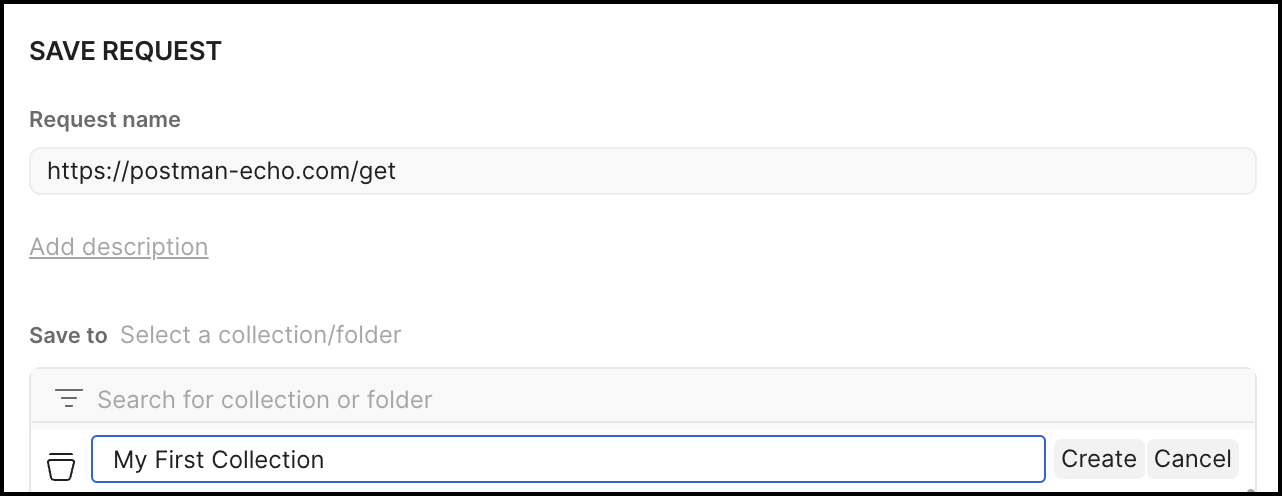
In the request builder, click Save.
-
Click New Collection. Name the collection.
-
Click Save to add the request to the collection.
After you save the request, your new collection and the request are listed under Collections in the sidebar.
To learn more about collections, visit the Collections overview.
Write a test for your API request
API tests are a way to ensure that your API is behaving as you expect it to. For example, you might write a test to validate your API’s error handling by sending a request with incomplete data or wrong parameters. You can write tests for your Postman API requests in JavaScript and add them to individual requests, collections, and folders in a collection. Postman includes code snippets you can add and then change to suit your test logic.
To write a test, do the following:
-
In your request, click the Scripts tab, then click Post-response.
-
Click
 Snippets at the lower right of the code editor, then select Status code: Code is 200. This will enter the following test code:
 -
Click Send.
After the request runs, the test will run. In the response section, click Test Results to review the results of your test.
To learn more about writing tests, go to Write scripts to test API response data in Postman.
Need help debugging? Connect with developers on Postman’s Discord community to ask questions and get help from Postman experts and other users.