Create blocks in Postman Flows
You can find a description and example for every block in Blocks overview.
Add blocks to the canvas
There are several ways to add blocks to a flow:
- Right-click any blank part of the canvas.
- Click
 Block on the toolbar.
 - Click and drag from the input or output port of an existing block.
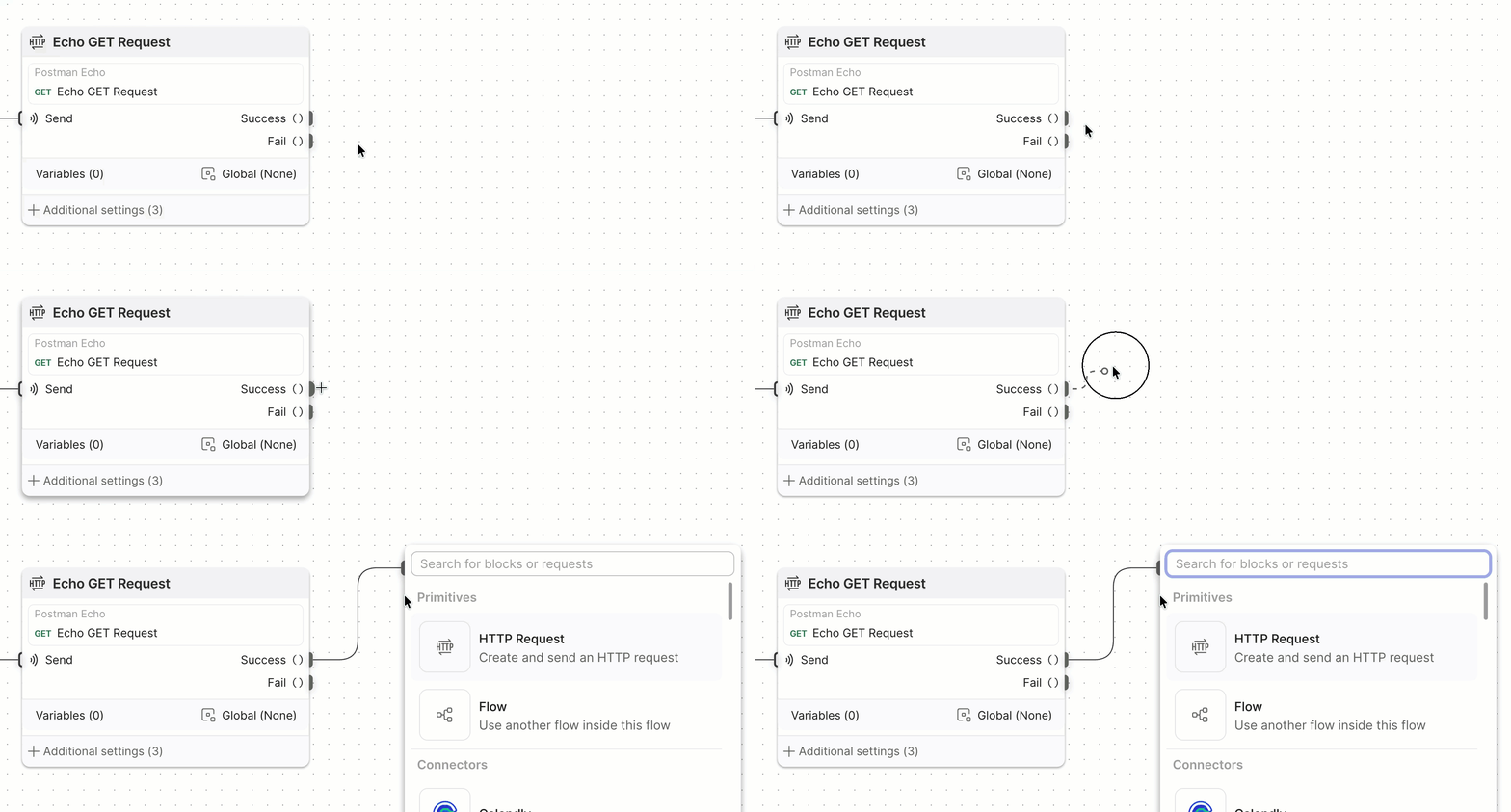
All of these actions open the block list, where you can select a block and place it on the canvas. You can also copy and paste blocks into your flow.
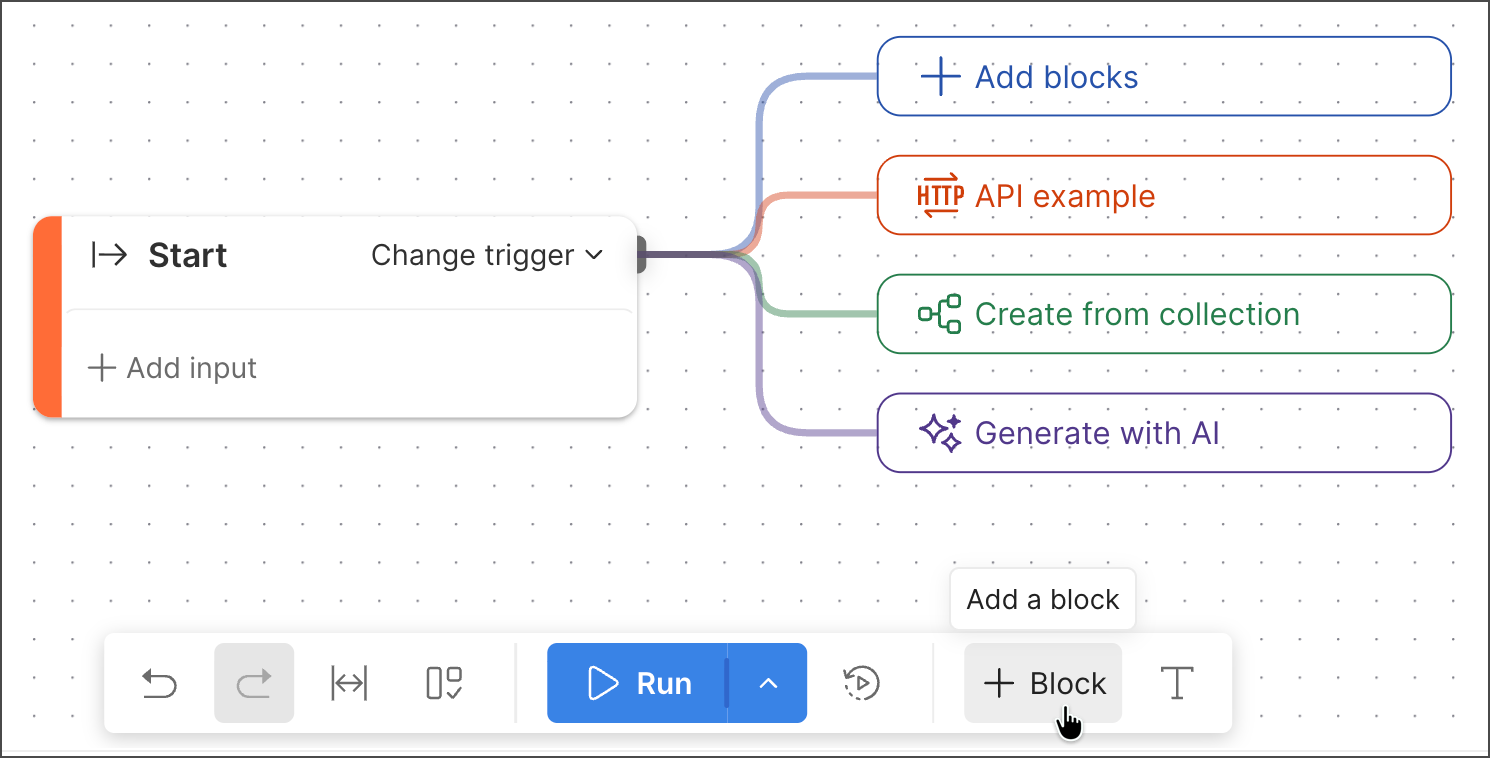
When you create a new flow, there’s a Start block on the canvas, with colored buttons that can do the following:
 Add blocks - Open the blocks list to add a block.
 API example - Create a complete basic flow with an HTTP Request block already configured to make an API call. You can change the flow as needed.
 Create from collection - Automatically create a flow with HTTP Request blocks for every request in a collection.
 Generate with AI - Open Postman Agent Mode, where you can describe in plain language what you want your flow to do.
Copy and paste blocks
You can copy and paste blocks in flows using your system’s standard keyboard shortcuts. The pasted blocks preserve the copied blocks’ configurations. If you copy and paste connected blocks, they keep their connections. You can also copy and paste annotations and groups.
To copy and paste blocks in a flow, do the following:
-
Select a block. For multiple blocks, hold ⌘ or Ctrl while selecting the blocks.
-
Select ⌘+C or Ctrl+C to copy the block.
-
Press ⌘+V or Ctrl+V to paste the block.
Tip
You can copy blocks from one flow and paste them in a different flow.