Create an organization in Postman
This feature is available on Postman Enterprise plans. For more information, see the pricing page.
Postman Organizations streamline API collaboration, reduce clutter in teams, maintain tighter access controls, and prevent the unwanted exposure of work and secrets. Organizations enable you to replicate your internal structure by creating independent teams, each with its own set of managers and members. This setup prevents sharing sensitive information and gives each team better control over its membership.
Learn how to plan and set up your organization teams and workspaces. To manage your publisher profile, discoverability, custom domains, authentication, and active invite links, see Configure team settings.
Get an organization
If your team isn’t part of an organization yet, you need to upgrade before you can create organization teams and workspaces.
Small teams can upgrade directly, without contacting support. From Settings > Team settings > Team resources, click Upgrade next to Organizations. The migration typically takes several minutes.
Larger teams require a longer migration window and are migrated with help from Postman Support. If your team doesn’t qualify for self-service migration, click Contact support next to Organizations on the same page, and a member of Postman Support will follow up to schedule your migration.
See Migrate your Enterprise team to an organization for the full procedure, including how to check migration status.
Once your organization exists, use the steps below to plan and set up your teams and workspaces.
Plan your organization setup
Before you set up your organization teams, consider the following:
- How many teams do you need and for which specific step in your API lifecycle?
- How will you name your teams and workspaces?
- Who will be on each team, and who will manage it?
- How many workspaces will each team need to begin collaborating?
- If you have Slack or Teams workspaces, which channels do you need to connect each workspace to post workspace updates?
Create organization teams
To create an organization team, do the following:
-
In Postman, click your profile icon in the header, then click your organization name to open the settings page.
-
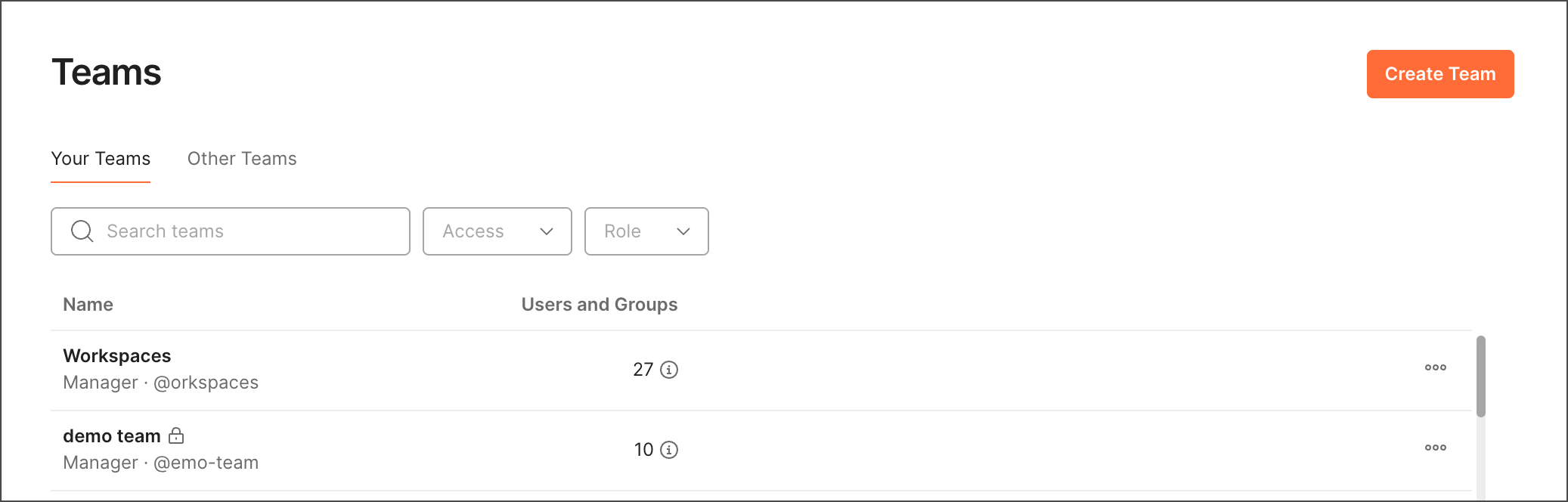
Click Teams in the left sidebar.
-
Click Create Team.
-
Name your team. The team is taggable in mentions using @, for example, “@api-developers”.
-
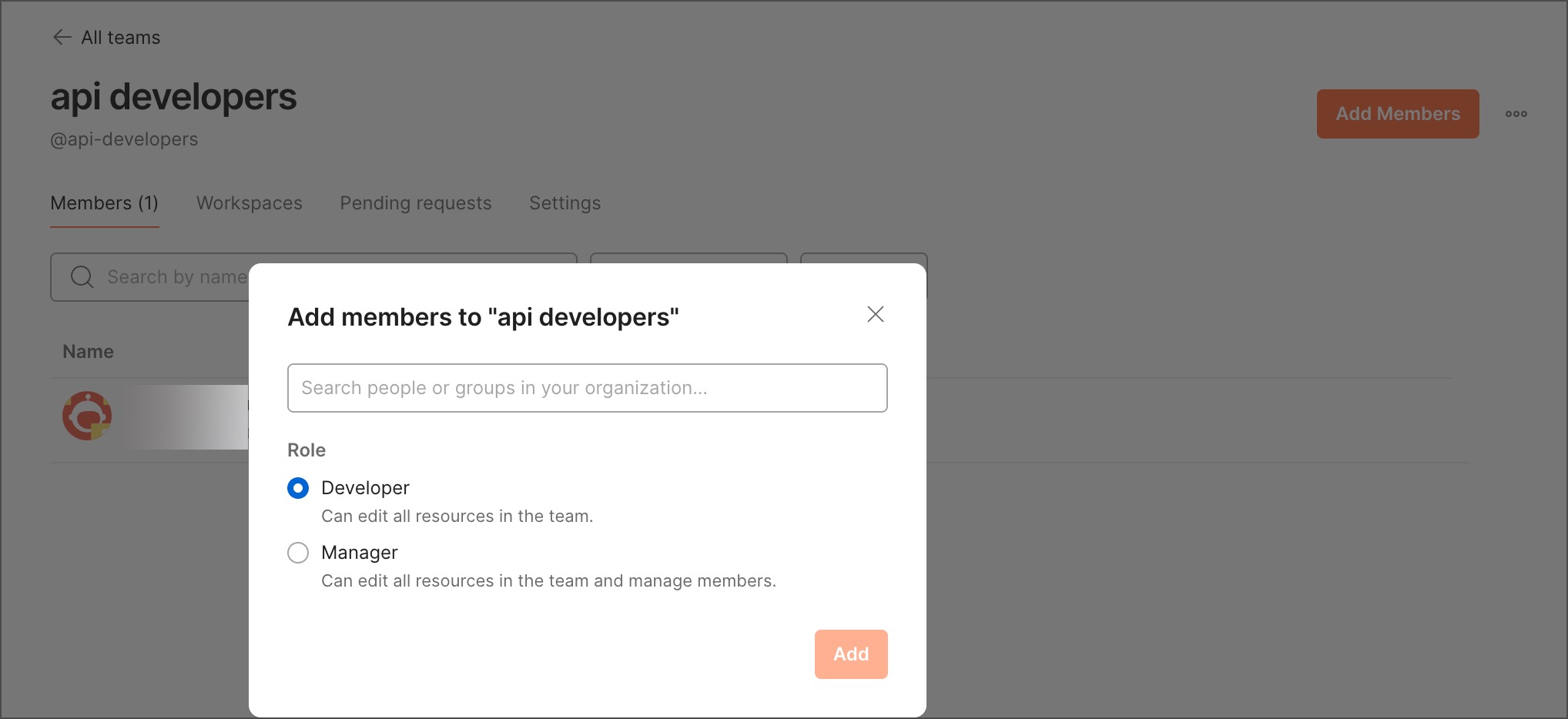
Select Add Members. To be added, members need to be part of the organization.
- If no Team Manager is assigned, the Organization Manager can continue to manage the Team membership.
- You can use groups to assign team membership and enable control through an Identity Provider (IdP) and SCIM.
Create organization workspaces
To create workspaces for an organization team, do the following:
-
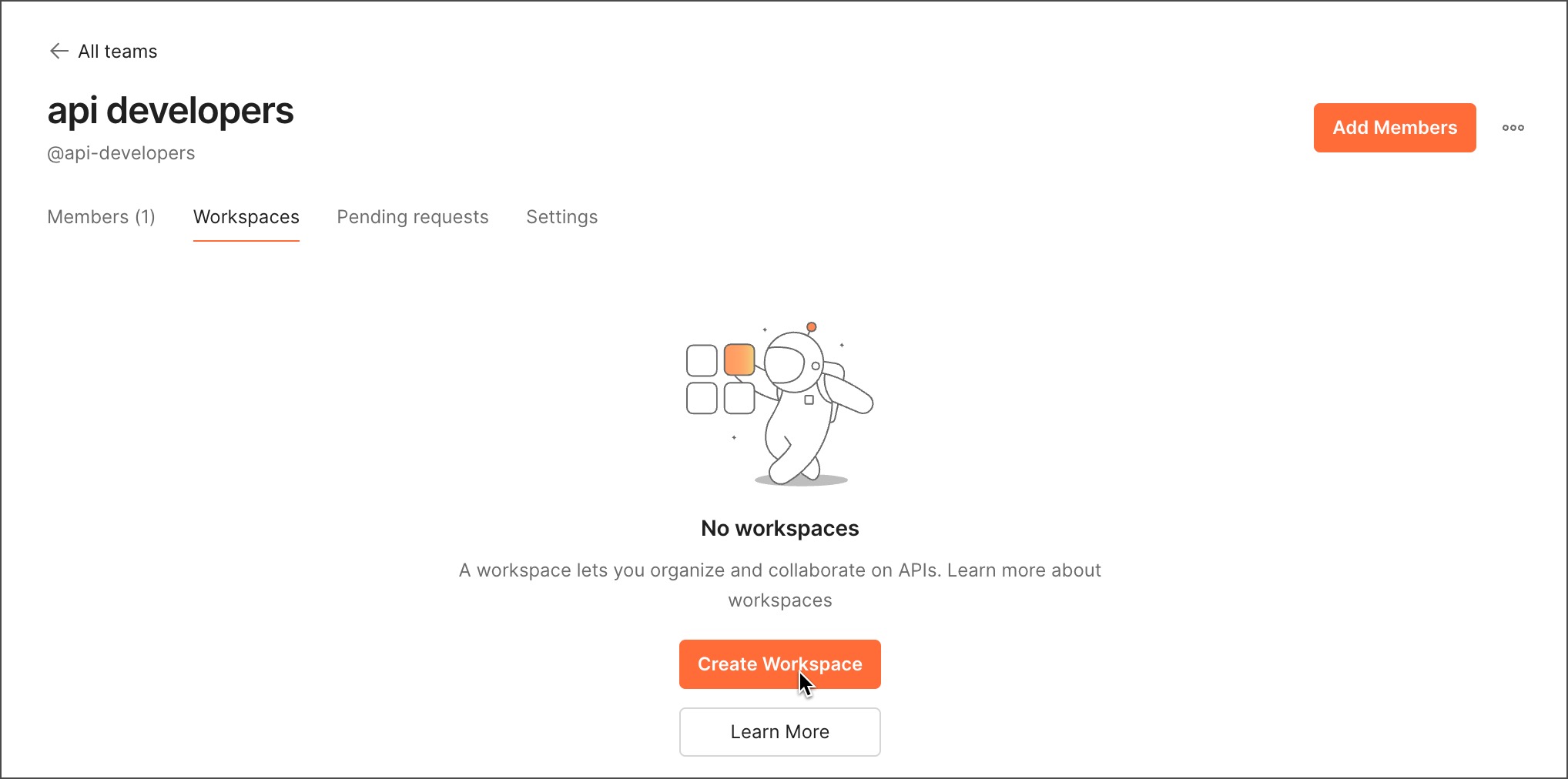
If you’re not continuing from the previous step, from the Home page, click Workspaces.
-
Click Create.
-
Select a blank workspace or a workspace template. Click Next.
-
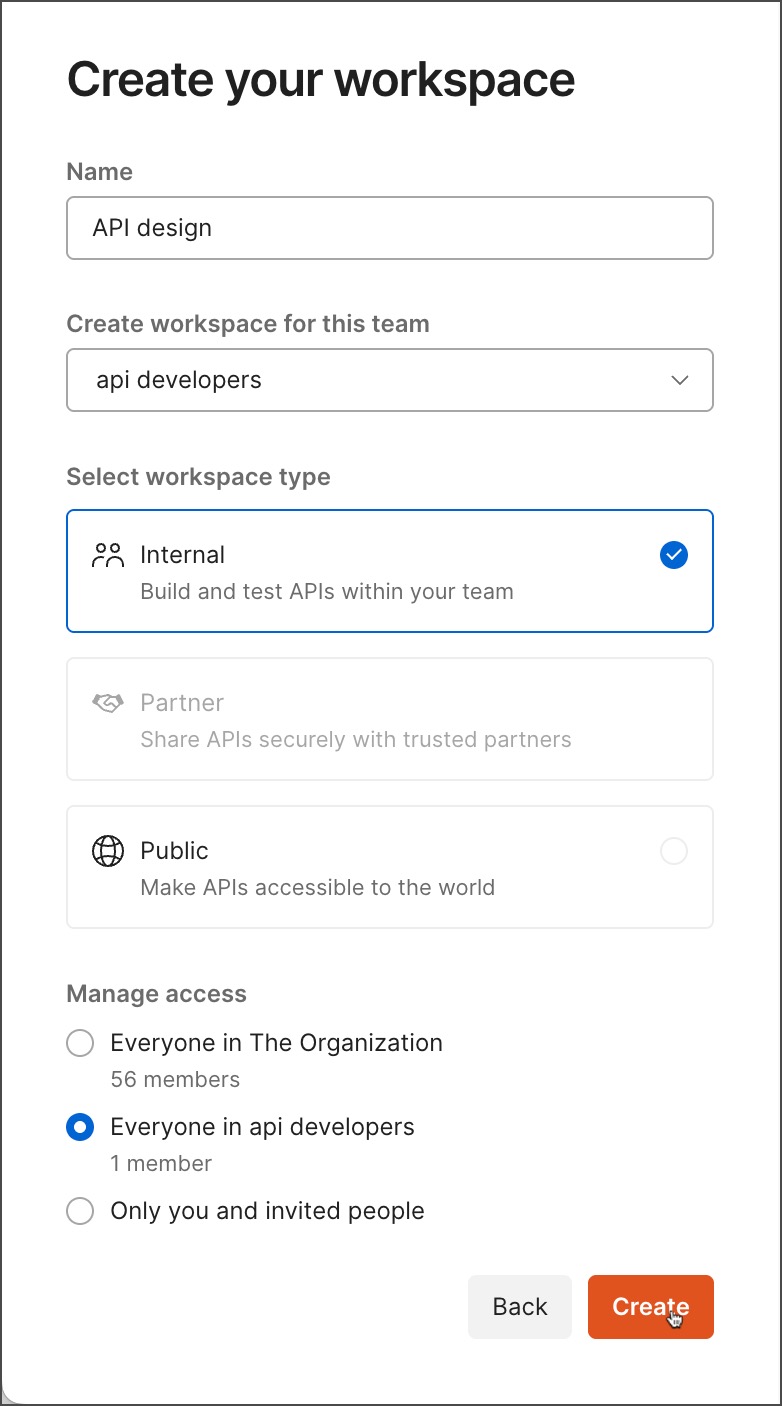
Name the workspace.
-
Select the team for which to create a workspace. Otherwise, your team is prepopulated.
-
Select Internal for workspace type. You can update the workspace visibility at any time. As a best practice, workspaces need to remain internal until all the work has been completed and approved.
-
Select Everyone in api developers to allow all Team Members with access to the workspace, whether invited or shared, to edit the workspace elements. Collaborators will still have to be added to the workspace roles to enable their access. For stricter access, select Only you and invited people. If there’s a specific need to open the workspaces to all people in the organization, select Everyone in The Organization.
-
Click Create.
After you create one or more workspaces, you can add workspace details, connect the workspace to a Slack or Teams channel, and post a workspace update announcing the workspace is ready for collaboration.
Edit workspace details
Postman recommends adding a useful workspace description and other details to help organization teams start collaborating.
To identify workspaces further, do the following:
- Under Workspace description, add a description.
- Under About, add a summary.
- Under Tags, add tags.
Your teams can continue to edit workspace details as their workspaces, collections, and APIs evolve.
To learn more, see Edit workspace details.
Announce your team and workspace setup
To post a workspace update, do the following:
-
From the workspace, select Updates.
-
Select Post an Update.
-
Enter a title and a description of your update.
-
Select Announcement from the dropdown list.
-
(Optional) Add a summary describing the change.
-
If you’ve integrated Postman with Slack or Teams, you can post a team workspace update to a channel on one or both of those apps. Click Post Update.
If a social channel is already subscribed to workspace updates the checkbox next to Share on Slack (or Teams) on the bottom right of the post is checked. If not, click

 Connect in the workspace overview to subscribe to a channel. Ensure the box is checked to send notifications when someone posts a workspace update. To learn more, visit the Slack and Teams integrations pages, respectively.