
Share collections with Guests
Collection Editors can give Guests who aren’t in your Postman team access to view a collection and send requests. You must have the Editor role in the collection you want to share with Guests. Guests must be able to SSO into the team.
If you’re on an Enterprise team, Admins and Super Admins can turn on or turn off sharing collections with Guests for Collection Editors in internal workspaces.
After you turn on Guest access to a specific collection, send them the collection URL to sign in to Postman and view the collection. Guest users who sign in to Postman using the collection URL are assigned the Guest role at the team level and a limited Viewer role at the collection level.
Assigning a user the Guest role doesn’t consume paid seats.
To turn on Guest access to a collection, do the following:
-
From the collection you want to share, click Share.
-
Turn on Allow Guests to view collection via link.
-
Click Copy Link to copy the collection URL.
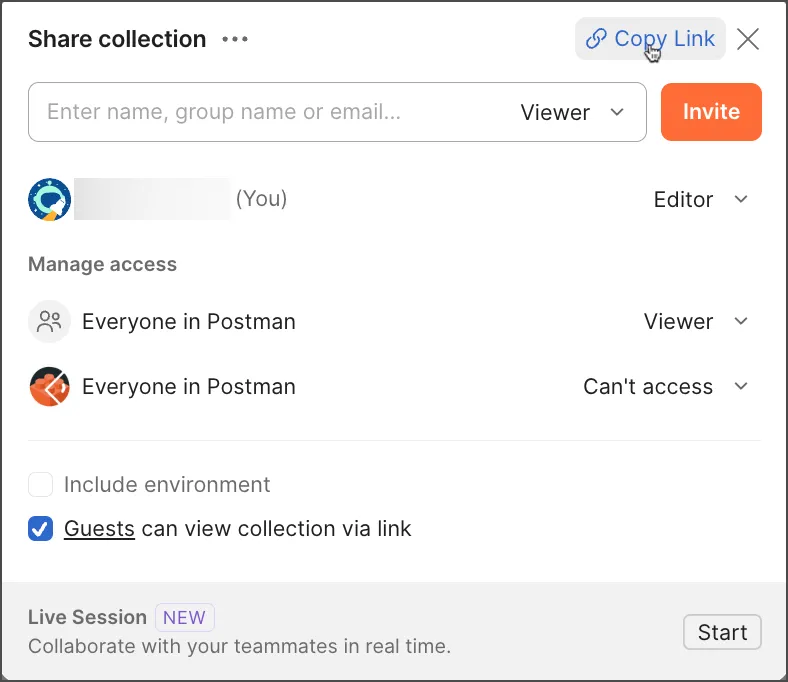
-
Send the collection URL to Guests who you want to view the collection. Postman requires Guests to sign in to Postman before they can view the collection.
Rules of sharing with Guests
Anyone with access to the collection URL can view it if Allow Guests to view collection via link is turned on.
Your team must have available seats or Auto-Flex enabled to invite more team members. If your team has SSO enabled, users who aren’t part of your team will be required to sign in using your team’s SSO.
The following permissions by role apply when sharing a collection with Guests:
Change Guest access to collections
You can change the Guest role at the team and collection levels. You can also revoke access to viewing collections for new and existing Guests.
To learn how to change a Guest’s team role, view Manage Guests. To learn how a Guest can request a role change, visit Request Editor role access for a collection as a Guest.
You can turn off Allow Guests to join your team and view this collection with the link. When you turn this off, new Guests can’t be assigned the Guest role. Guest users already assigned the Guest role will continue to have access to the collection.
To remove Guests at the team level, view Remove members. In certain cases, Guests with access to only one collection are automatically removed from the team:
-
If the Workspace Admin removes them from the collection.
-
If the Workspace Admin removes the Guest from the workspace the collection is in.
-
If the Workspace Admin deletes the workspace the collection is in.
To remove Guests at the collection level, do the following:
- Click
 View more actions next to the collection name, then click Share.
- From the dropdown next to the user’s name, select Remove.
Removing Guests from collections doesn’t revoke their access to the workspace the collection is in. To revoke their entire access to the team, view Remove members.