
Share collections and other elements
You can share your collections, APIs, and environments with your team and with people outside your team. Guests who are part of your organization can also view your collections.
Other Postman elements are shared differently:
- To share a flow, refer to Share links to flows and embed flows in websites.
- To share a collection run, refer to Test your API using the Collection Runner.
- To share a collection as a file, refer to Data import and export in Postman.
- To share a monitor, refer to Work with monitors.
You can share Postman elements with your team by selecting specific people or using the Run in Postman button, the Postman API, or sharing a link.
For all sharing options except the Run in Postman button, the user receiving the link has the option to open the link in the Postman desktop app by default. To change this setting, you can do the following:
- Click
 Settings in the Postman header
- Click App settings > General, and under Application turn off Always open in desktop app.
Share Postman elements with specific team members
To share Postman elements by selecting team members, do the following:
-
Click
 View more actions next to the element you want to share, then click Share. If you have unsaved changes in your collection, you’ll be prompted to save and share, share without saving, or save and overwrite.
-
Enter the name, email address, or group name, then select a Viewer or Editor role for them.
If you share a request or a saved response, the existing roles will be inherited from the collection.
-
If you have an Editor role, under Manage access, you can assign the Viewer or Editor role to everyone in the workspace’s team.
-
If you’re sharing a collection, collection folder, request, or example, you can also specify an active environment. Select Include environment and select the environment.
To change the active environment for the team members and groups you want to share with, you must share the collection, collection folder, request, or example with them again. Choose a new environment in the environment dropdown list, then click Invite.
-
Click Invite.
Postman emails the selected people that you shared the element with.
Share using a Run in Postman button
You can share a collection in a website, README, or other documentation by embedding a Run in Postman button.
-
Hover over the collection you want to share, click
 View more actions, then click Share.
-
In the Share collection dialog, click
View more actions, then select Run in Postman. -
Select who can view the collection:
- Team - Anyone on your team can view the collection.
- Public - Anyone can view the collection.
-
Click Next.
-
Configure any additional settings:
- To include an environment, select one from the Add an environment dropdown list.
- To enable people outside your team to access the collection, turn on Allow Guests to view collection via Run in Postman.
-
Under Embed code, click HTML friendly or Markdown friendly, then click
 Copy Code.
You can create a Run in Postman button for any of your public collections from the Postman API Network. For more information on creating and using a Run in Postman button, see Create a Run in Postman button.
Share using the Postman API
To share the collection JSON using the Postman API, do the following:
-
Hover over the collection you want to share, click
View more actions, then click Share. -
In the Share collection dialog, click
View more actions, then select Share via API. -
Under Get collection JSON using Collection Access Key, click Generate New Key to create a read-only collection access key. This key expires after 60 days of inactivity.
Make sure you remove any sensitive information from your collection before sharing collection access keys.
If Share via API isn’t available for a collection, your team’s Super Admin may have turned off the Allow creation of Collection Access Keys setting. Contact your Super Admin to check.
-
(Optional) If you are on an Enterprise plan and have permission to manage public elements, you can click Manage keys to view or revoke this collection access key on the Manage public elements page. You can also view or revoke collection access keys you created on your API keys page. To learn more about collection access keys, visit Generate a collection access key.
Anyone with this link has read-only access to the collection’s JSON. The data that this Postman API endpoint serves reflects the current state of the collection.
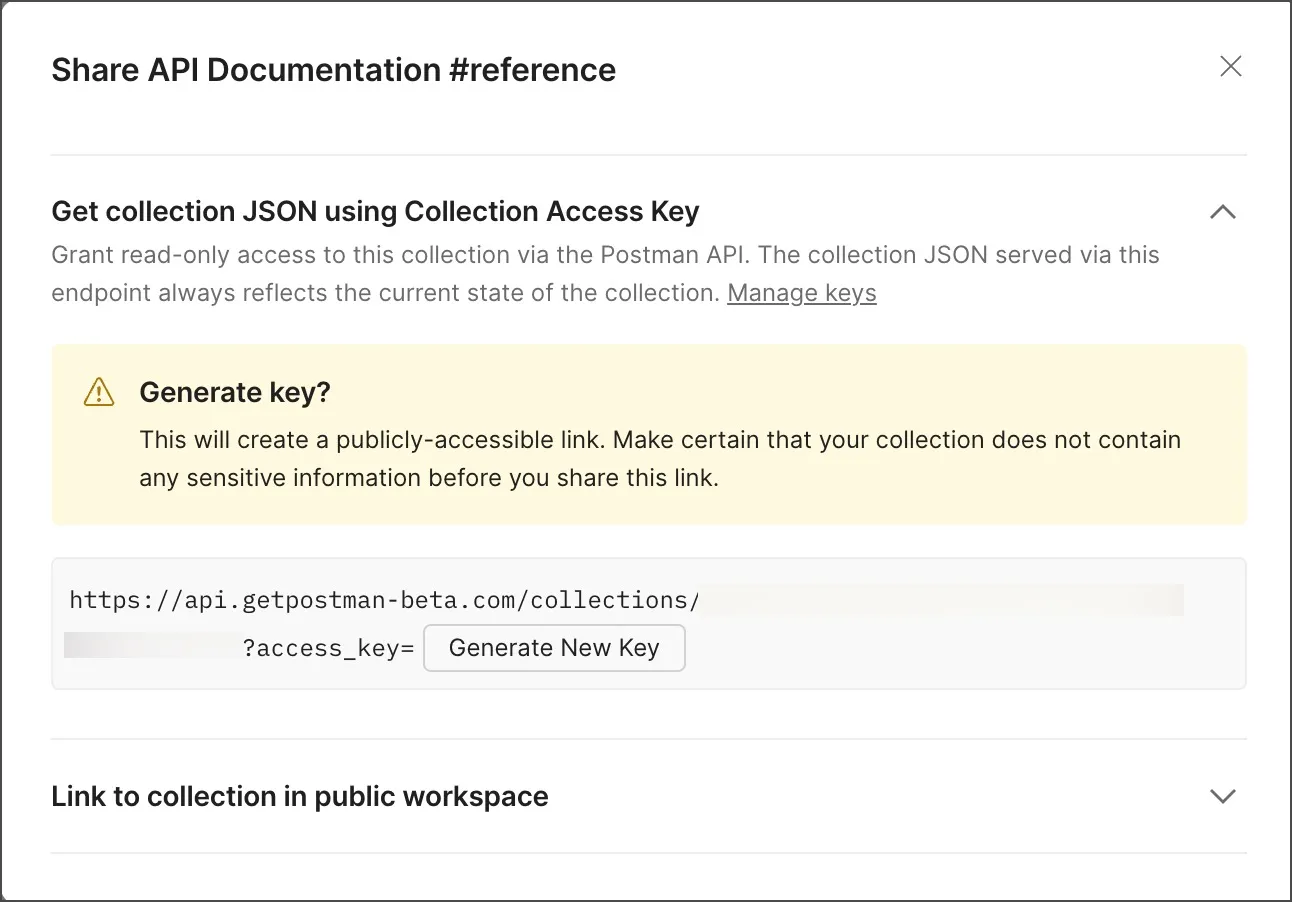
If you want to share a link with other users, click Link to collection in public workspace to provide a link to the collection. The collection must be in a public workspace. If the collection isn’t in a public workspace, click Move Collection, then choose a public workspace to move it to. Click Copy link to copy the link to your clipboard, then share the link with others. Anyone with this link can view and fork your public collection.
Share using a URL
You can share collections and other elements with your team and coworkers who aren’t part of your team.
Select the collection, folder, request, or example and click View more actions, then select Copy link to copy a URL you can paste in a messaging app or email.
To share a URL to a collection, folder, request, or example with a specific environment selected, click View more actions > Share.
You can also use the Postman VS Code extension to share a collection and environment, or a URL to a collection and environment.
If the person you’re sharing a link with isn’t part of your team, they’ll be prompted to request to join the team.
If enabled in the team settings, users on Team plans from verified domains can automatically join your team using a shared link.
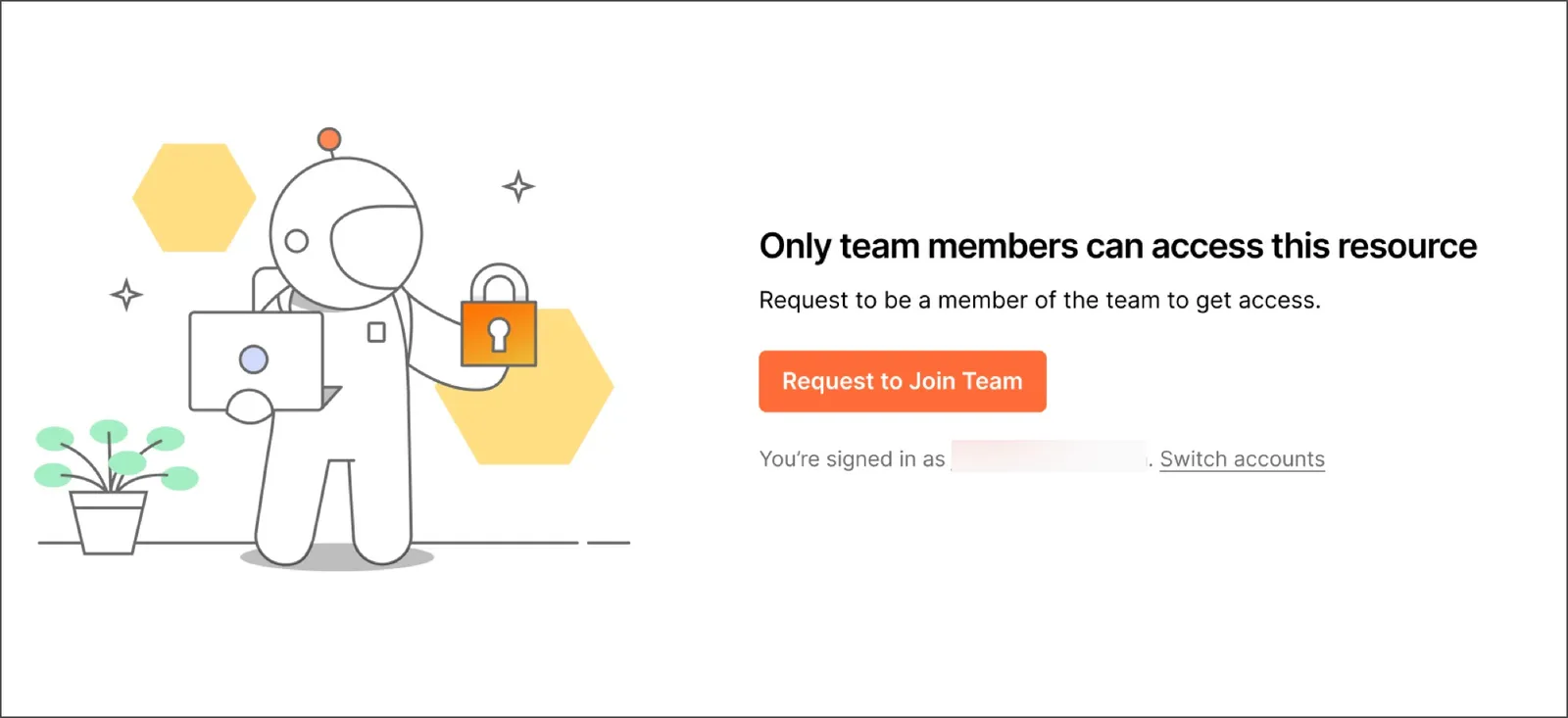
An Admin will then approve or deny the request.
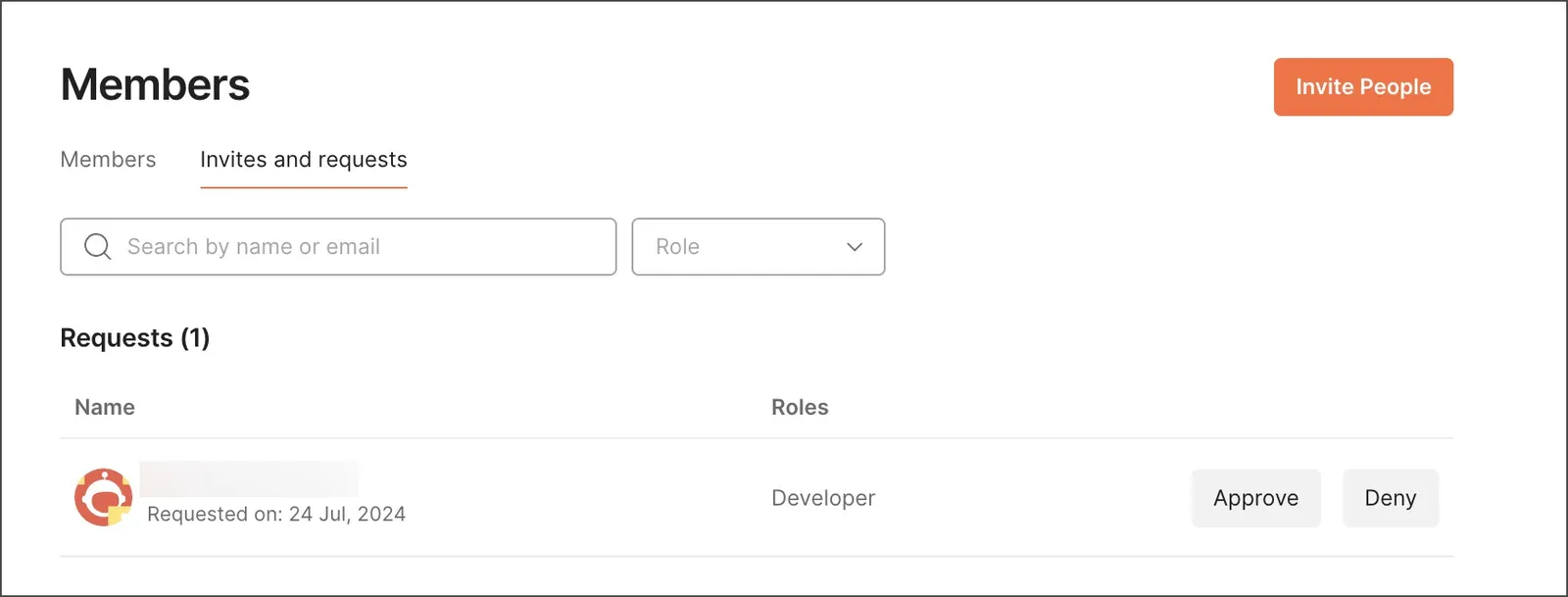
Your team must have available seats or Auto-Flex enabled to invite more team members. If your team has SSO enabled, users who aren’t part of your team will be required to sign in using your team’s SSO.