
Debug collection run results
When running collections manually, Postman displays the results of your request runs in real time. This includes test results, errors, and any failed test assertions. You can view the source of the collection run, selected environment, number of iterations, total duration, number of tests, number of errors, and average response time.
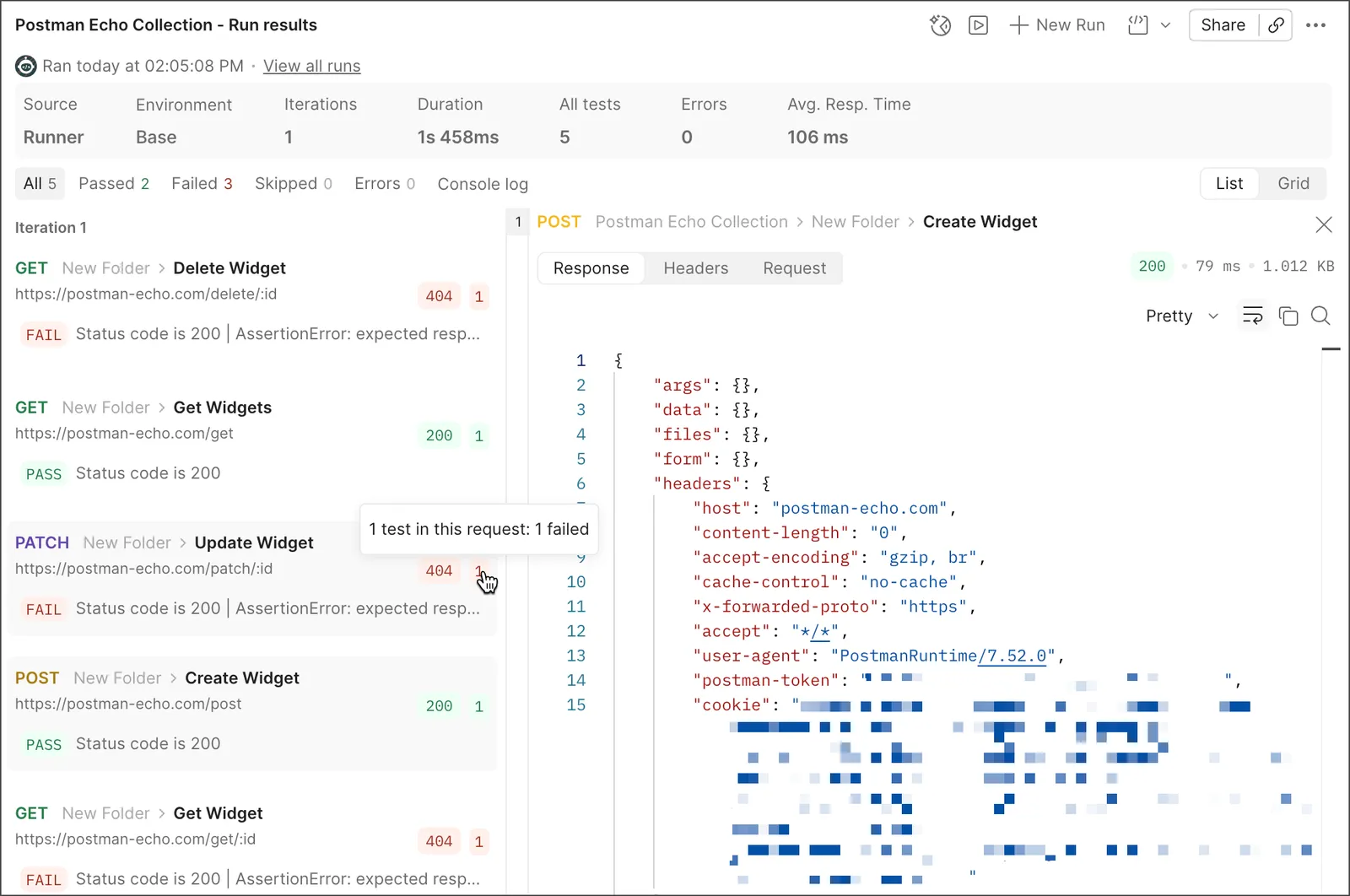
To learn more about what happened during the collection run, see Test results and Errors. You can also share and comment on the run results with your team.
Test results
After running a collection, you can view the results of your tests in several ways:
-
Click anywhere in the run results page and scroll through the list with the following keys and keyboard shortcuts:
-
Click a request to view details about the request. You can view general information about the request and the request headers and body. You can also view the response headers and body if the Persist responses for a session checkbox was selected when configuring the collection run.
-
Click the name of a request to open the request in a new tab. You can view any post-response scripts or click Send to send the request again. If your requests are in a folder, click the name of the folder to open it in a new tab.
-
If your collection run included more than one iteration, click an iteration number to jump to the results of a specific iteration.
-
Hover over the response status code next to a request to show the full status code and a description.
-
Click the Console log tab to view script-level console messages grouped by request. Badges identify each message as a log, info, warning, or error message.
-
Click View all runs to view a list of past runs. Learn more about viewing run history.
You can use Agent Mode to debug the run results and generate tests for requests in your collection:
- If any of your requests encounter a failure or error, you can click
 Debug with AI to use Agent Mode to help you debug and fix them.
- If any of your requests are missing tests, you can use Agent Mode to suggest test assertions.
Errors
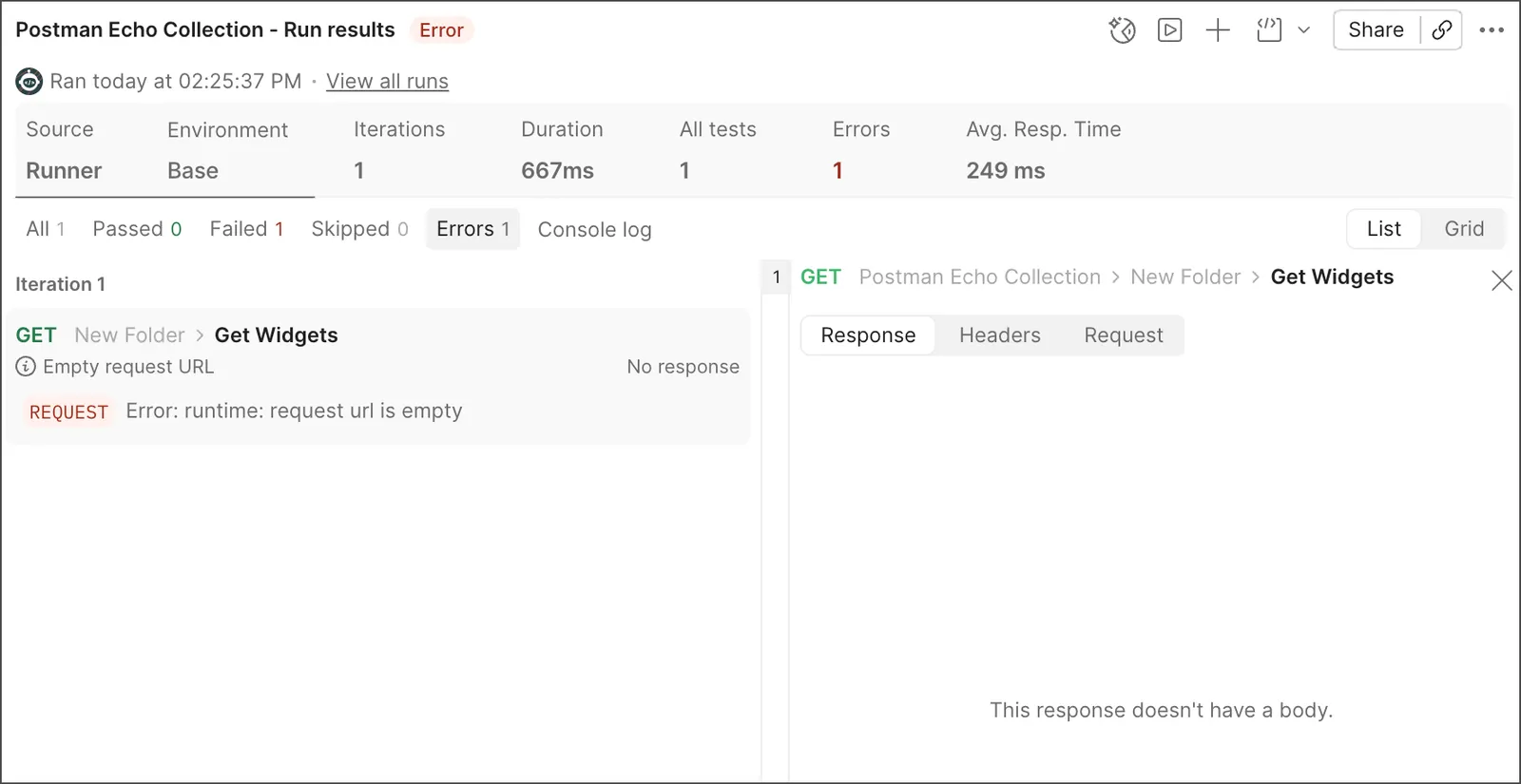
Click the Errors tab to filter results by requests that encountered errors. Note that errors indicate runtime issues like timeout or TLS handshake errors. Failed requests occur when one or more user-specified checks (like post-request scripts) don’t match expectations.
The requests in your collection run that have errors appear in the run results page with an error badge and the error message. Badges identify errors as related to NETWORK, REQUEST, or SCRIPT issues.
If there’s a problem with an HTTP collection run, an HTTP response, or a monitor run, you can create a new Jira issue from Postman. To learn more, see Create a Jira issue from a collection, collection run, response, or monitor.
Mock events
After the collection run completes, you can view the Mock events tab in the run results. The Mock events tab shows events associated with the mock, including applied scenarios, response code, and tests that ran.
Sharing and commenting
You can share the results of a collection run with your team and add comments to the run results. You can also view comments that your teammates have added to the run results.
-
Click Share in the upper right of the workbench to share the results with another team member. This provides a link you can give to other team members to view the details of this run. You can also click
 Copy link to invite teammates to your workspace. If you’re in an internal workspace only you can access, you can click Invite people to invite teammates to your workspace and then share the results.
-
Click
 Comments in the right sidebar and enter your comment. Click Comment to share your comment with your team. Learn more about adding comments.
Delete a collection run
To delete a collection run, click  View more actions in the upper right of the workbench and select Delete. Click Delete to confirm.
You can run collections with scripts that import packages from your team’s Postman Package Library. Learn how to add packages to the package library, and import packages into your scripts. You can also run collections that import external packages from npm or JSR package registries.