
Share a request with its response
Share a link to an HTTP request and its response with your team members or external partners. You can also share a previous response from the request’s history. To share a response, open a request and send it, then copy the link to the response. Others can use the link to view the same response you’re getting, along with the request configuration. If collaborators no longer need access to the shared response, you can stop sharing the link.
You can share responses for HTTP requests that were created on October 7, 2024, and later. You can’t share responses for HTTP requests created before this date.
Response sharing is useful for sharing a working example with your collaborators and debugging your request with help from others. You can also share an unexpected response with collaborators to report issues you experience.
To share a response, the HTTP request must be in an internal or a Partner Workspace that collaborators you’re sharing with can access. Postman doesn’t support sharing a request and its response from public workspaces. Also, partners in Partner Workspaces with multi-partner mode enabled won’t be able to share a request and its response.
If you install the Postman app for Slack or Postman app in Teams, links for HTTP responses you share in Slack or Teams will display extra information such as the request URL and response code. Only HTTP responses shared from unrestricted workspaces will display the response body.
-
If the response returns sensitive data, it will be visible to collaborators you share with. Make sure to consider the sensitivity of data returned in a response when deciding which collaborators you share with. Postman recommends checking your organization’s policies to understand what qualifies as sensitive data.
-
By default, responses in your request’s history are only visible to you. Collaborators in an internal or a Partner Workspace can only view responses you’ve shared with them.
Share a request and its response with collaborators
After sending an HTTP request, you can share the current response with others, along with the request configuration. If the request isn’t already saved to a collection, you’ll be prompted to do so. You can also share a previous response from the request’s history, as long as saving responses was turned on at the time the request was sent.
To share the current response from the request, do the following:
- Expand Collections in the sidebar, and open an HTTP request.
- Click Send to send the request, then view its response.
- Click
 Copy link in the response area. This copies the link to your clipboard, and the Shared tag displays.
- Share the link with a collaborator who has permission to access the request.
To share a previous response from the request’s history, do the following:
- Expand Collections in the sidebar, and open an HTTP request.
- Click
 History in the response area. This displays a dropdown list of each date and time you previously sent the request and the response status code that was returned. Hover over each item to view the request method and URL.
- Select a response from the dropdown list to view it and the request configuration.
- Click Copy link in the response area. This copies the link to your clipboard, and the Shared tag displays.
- Share the link with a collaborator who has permission to access the request.
Click Copy link to copy the direct link to the shared response again for later. You can also select  Options > Copy Link next to the shared response in the dropdown list.
When you select a previous response from the History dropdown list, the date and time you sent the request will display in the response area. Select the date and time to display the dropdown list again, and choose a different response if you’d like. You can select Current to return to the latest version of the request configuration. Note that you already shared a response that has the  Shared icon next to it.
If you try to share a response from History in the sidebar, you’ll be prompted to save it to a collection first. No responses will be saved in the request’s history. You must send the request again, and then follow the steps to share a response.
View a shared request and its response
Open the link a collaborator shared with you to view the response in Postman along with the request configuration. You can open the request-response pair again from the response area. If a collaborator stops sharing a response, you’ll no longer be able to view it.
To view a shared response using a link, do the following:
- In your browser, enter the link to a response that a collaborator shared with you. The link opens the Postman web app and the request in its workspace.
- Review the shared response and its request configuration.
To return to a shared response from the response area, do the following:
-
Expand Collections in the sidebar, and open an HTTP request with a response that a collaborator shared with you. Make sure you previously opened the link to the response in your browser.
-
In the response area, click
History, then select a response that a collaborator previously shared with you. A response with a collaborator’s avatar next to it was shared with you. You can hover over their avatar to display their username.If a collaborator stops sharing the response, it will no longer be visible to you in the dropdown list.
-
Review the shared request configuration and its response.
When you select a shared response from the History dropdown list, the date and time your collaborator sent the request will display in the response area, along with their avatar.
Click Copy link to copy the direct link to the shared response for later. You can also select Options > Copy Link next to the shared response in the dropdown list.
Manage a shared request and its response
You can stop sharing a response and its request configuration if collaborators no longer need access. You can also delete a response from your request’s history.
To stop sharing a response with collaborators, do the following:
-
Expand Collections in the sidebar, and open an HTTP request with a response you shared from your history.
-
In the response area, click
History, then select a response with the Shared icon next to it. A response with this icon next to it can be viewed by collaborators you shared the response with.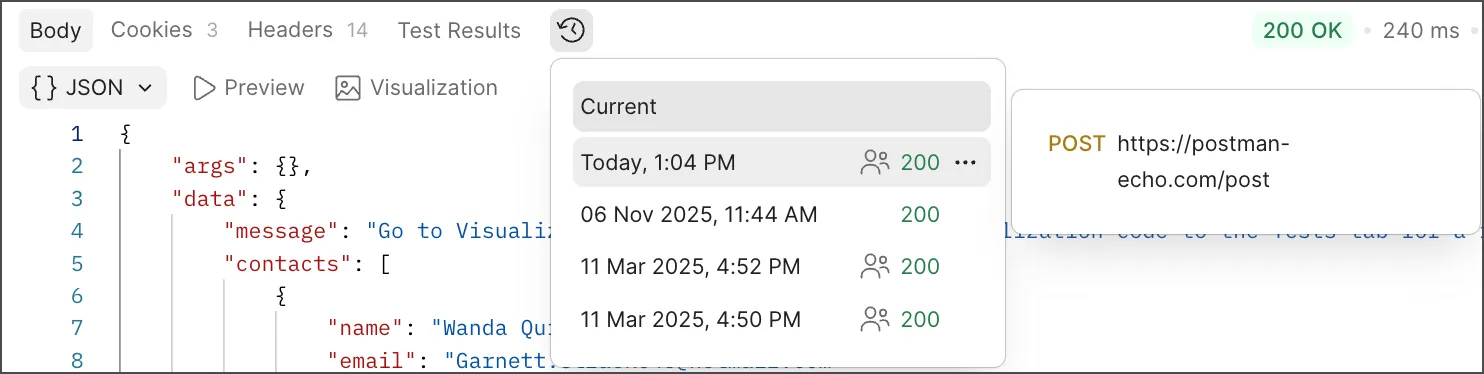
-
Hover over the Shared tag in the response area then click Stop Sharing. Once you’ve stopped sharing a response, the link will continue to take collaborators to the associated workspace. The request and its response from your history will no longer be visible to collaborators.
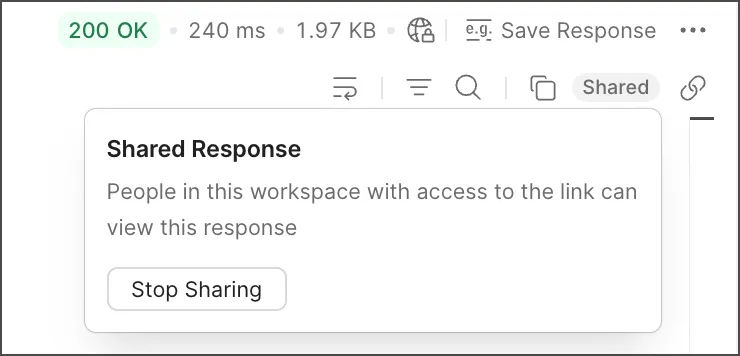
You can also select
Options > Stop Sharing next to a shared response in the dropdown list.
To delete a response from your request’s history, do the following:
- Expand Collections in the sidebar, and open an HTTP request.
- In the response area, click History.
- Next to a response in the dropdown list, select Options > Delete.